Two updates for DBaaS Postgres: automatic storage expansion and a backup file browser in the Console. Both are available now.
Storage autoscaling
Database volumes can now grow automatically. When enabled, the platform monitors disk usage and expands the volume once it crosses your configured threshold.
You can enable this in the Console, via the CLI, or through the API:
| Setting | Description | Notes |
|---|
| Maximum Storage (GB) | Upper limit the volume may grow to | Must be at least 1 GB |
| Scale at Usage (%) | Utilisation threshold that triggers a scale-up | Recommended: 80% (keeps 20% free) |
| Increase by (%) | How much to grow relative to current size | Default: 10% |
| Max Increase per Step (GB) | Cap on how many GB are added in a single scale step | Default: 100 GB |
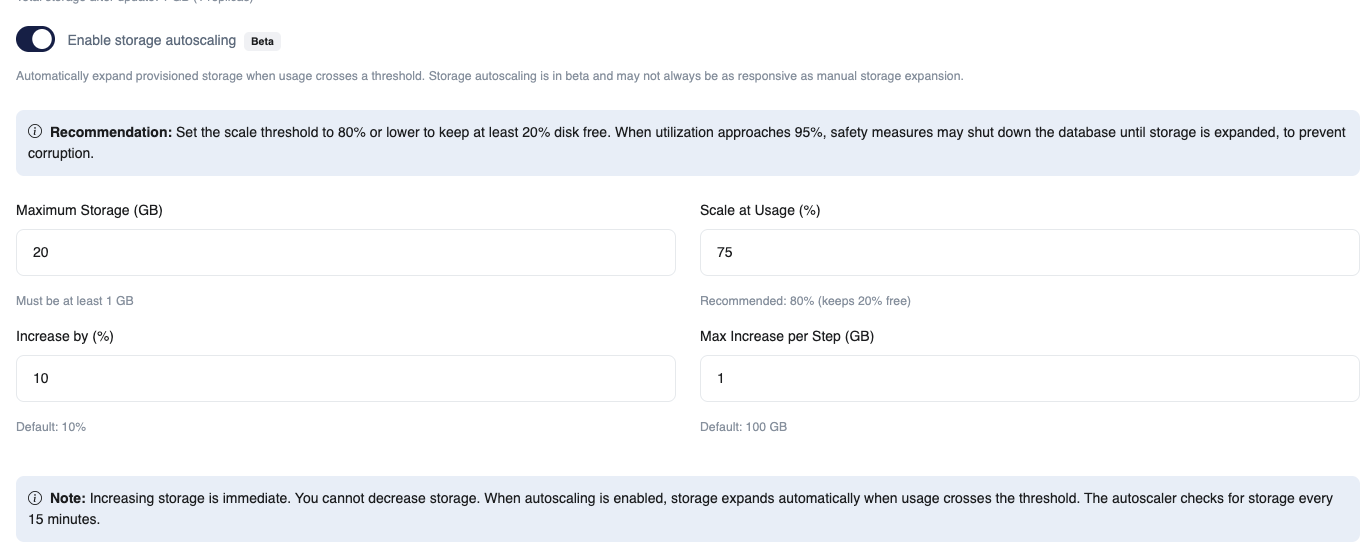
The screenshot below shows the autoscaling configuration panel. You set the maximum volume size, the usage threshold that triggers expansion, the percentage to grow by, and a cap on each step. The note at the bottom confirms that expansion is irreversible and runs on a 15-minute check interval.
Keep at least 20% free
Set the threshold to 80% or lower. WAL, temp files, and autovacuum all need headroom. If the disk reaches 95%, the database shuts down to prevent corruption. The autoscaler runs every 15 minutes. Expansion is immediate once triggered. Storage can only grow — you cannot shrink it, so plan your maximum with cost in mind.
All instances in a cluster share the same disk size. When a scale step triggers, every instance (primary and replicas) is expanded to keep failover consistent.
Browse Barman backup files
Barman backups still go to your cluster’s managed backup bucket. You can now browse the files in that bucket directly from the Console — base backups, WAL segments, names, sizes, and object metadata.
Previously, you couldn’t access or view the backup bucket contents from the Console. Now you can inspect backup file metadata directly, giving fast insights into what was produced and where it is stored. Useful when verifying backups landed correctly, checking retention, or preparing a restore.
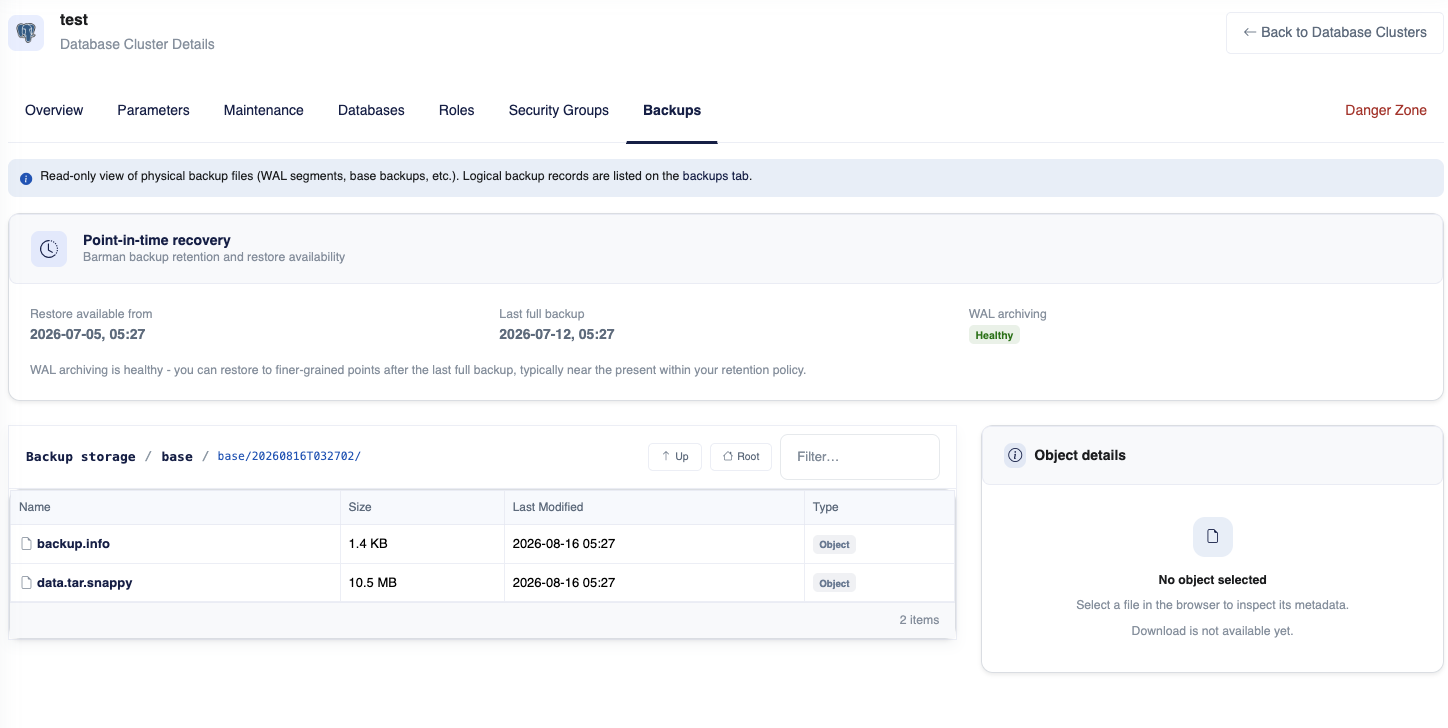
The base backup view lists each backup directory with its files (backup.info, data.tar.snappy), sizes, and timestamps. The point-in-time recovery card at the top shows the restore window and WAL archiving health.
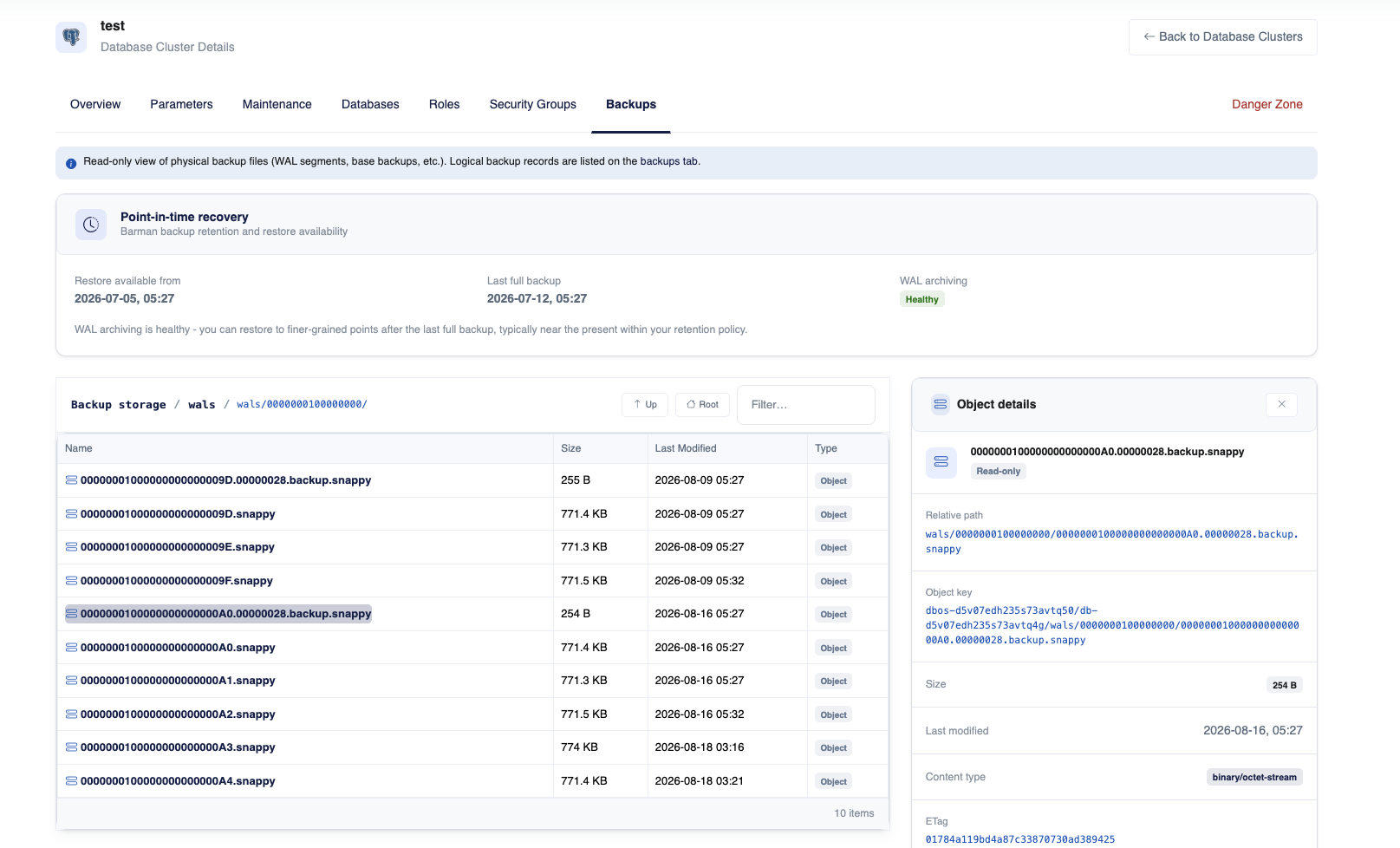
The WAL view lists individual WAL segments. Selecting a file opens an object details panel with the relative path, object key, size, last modified timestamp, content type, and ETag.
Get started
Open your cluster in the Console, enable storage autoscaling, and check the backup browser under the Backups tab.
Full reference: DBaaS Postgres documentation.
 Thalassa Cloud